WordPress SEO Setup Guide: A Practical, Step-by-Step Checklist for New and Existing Sites
A WordPress site needs a few settings checked before launch: search visibility, permalinks, one preferred address, an SEO plugin, indexing controls, Search Console, structured data, speed, and multilingual setup. This guide covers each in order, with a 10-point launch checklist.

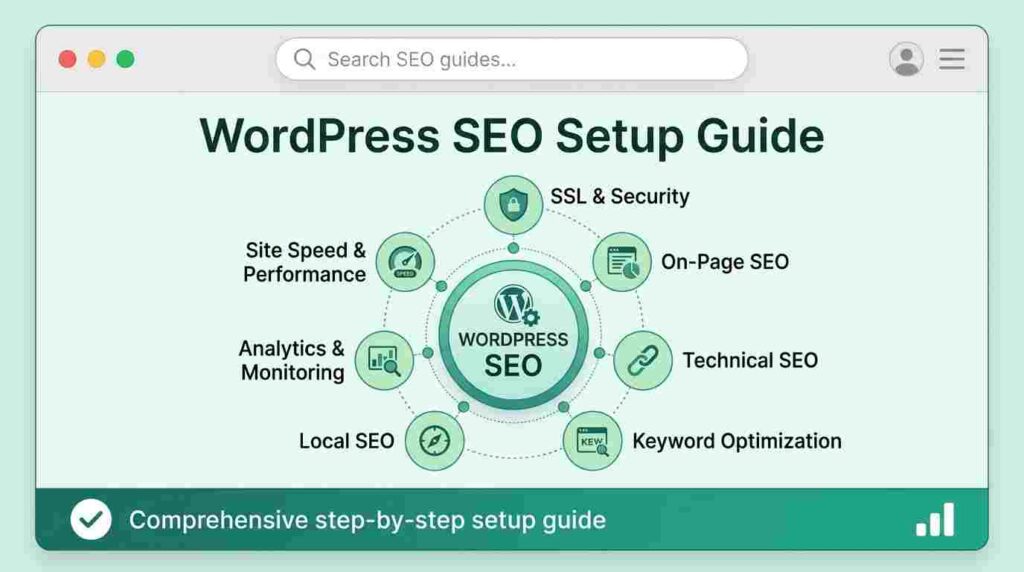
This WordPress SEO setup guide walks through the settings, tools, and decisions that give a WordPress site a sound technical base for search: visibility, URLs, an SEO plugin, titles, crawling, Search Console, structured data, speed, and multilingual support. It follows the order in which the decisions are easiest to make, and it separates what Google and WordPress document from what is common practice. It also covers right-to-left and multilingual sites across the Middle East, Europe, and Asia.
Make sure the “Discourage search engines” box is unticked, choose clean permalinks before you publish, pick one preferred site address, and install one SEO plugin. Set title and meta description templates, review which archive pages should be indexed, submit a sitemap in Google Search Console, and test your markup and speed. Setup builds the base for good SEO, but it does not replace useful content, and nothing here guarantees rankings.
When I work on website structure for clients, the same few settings cause most early problems: a site hidden from search by mistake, URLs changed after launch, and archive pages left to multiply. The steps below deal with those first.
What Is a WordPress SEO Setup Guide, and What Does WordPress Do by Default?
A WordPress SEO setup guide is an ordered list of settings and checks that prepare a WordPress site to be crawled, understood, and indexed by search engines. WordPress gives you a sound foundation, but several defaults need a decision from you.
What does “SEO setup” actually cover?
SEO setup covers the technical and on-page basics: search visibility, URL structure, titles and descriptions, crawling controls, indexing tools, structured data, and speed. It does not cover keyword research, content quality, or link building, which come afterwards. Think of setup as removing obstacles, not winning rankings.
What does WordPress handle on its own?
WordPress produces clean HTML, generates archive pages, and lets you choose permalinks, but most search-specific controls need a plugin or a manual check. Recent versions can also create a basic XML sitemap, and WordPress core outputs some meta tags. The exact output depends on your version, theme, and plugins, so always view the page source and confirm what your site actually produces.
What WordPress setup can and cannot do for rankings
WordPress setup can help search engines crawl and understand your pages, but it cannot make weak content rank. Neither Google nor WordPress documents a ranking boost from tidy settings alone. The setup is a base for good website SEO, together with useful content and a clear site structure. Be wary of guides that promise results from setup alone.
Which WordPress SEO Settings Should You Fix Before Publishing Anything?
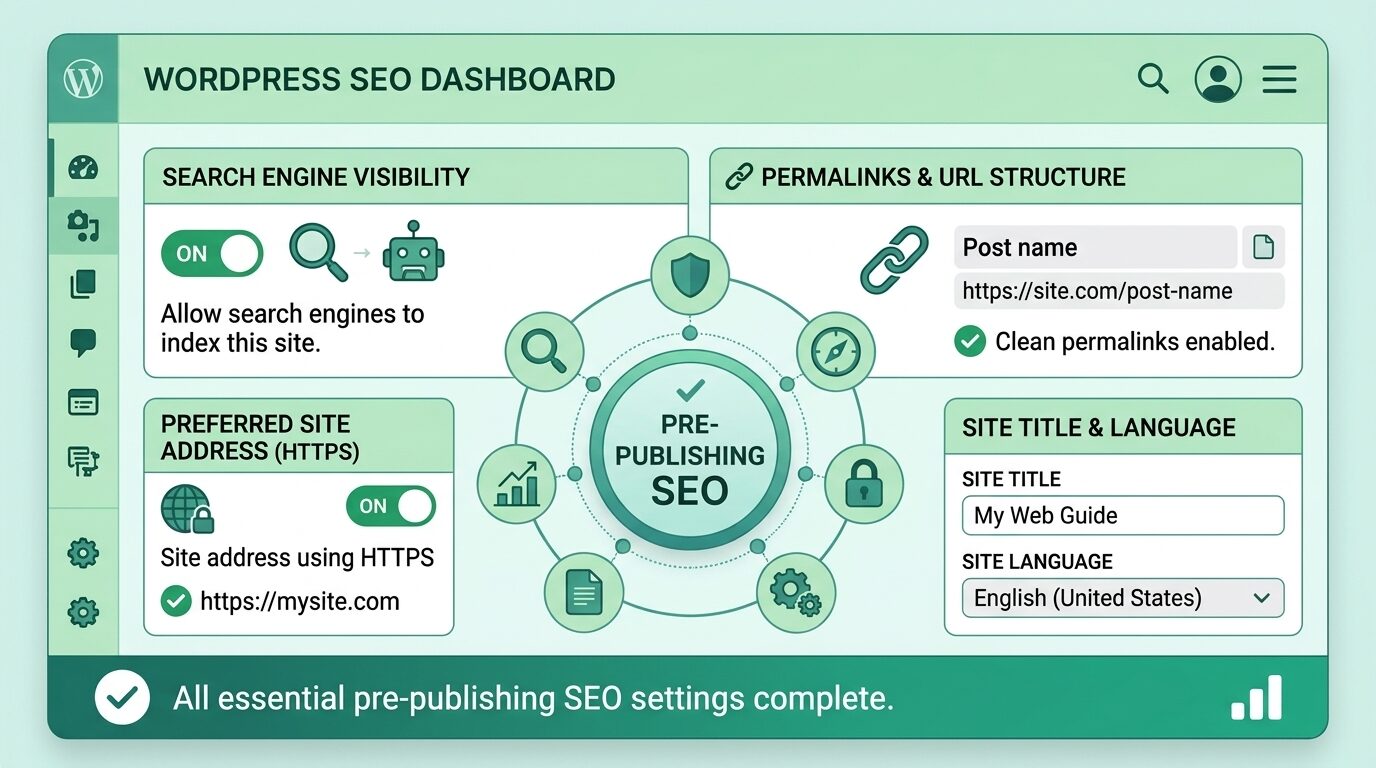
Fix four settings first: search engine visibility, permalinks, your preferred site address, and the site title and language. These affect every page, so changing them later is harder than getting them right now.
Check the “Discourage search engines” setting
Go to Settings > Reading and make sure “Discourage search engines from indexing this site” is unticked on a live site. WordPress’s own help text says the option asks search engines not to index the site, and that your site stays visible on the web and not every search engine follows the request. It is useful on a development site. Leaving it ticked after launch is a common reason a new site fails to appear in search.
Choose a clean permalink structure
Choose the “Post name” permalink structure in Settings > Permalinks, so that URLs use readable words instead of ID numbers. A URL such as /wordpress-seo-setup-guide/ is clearer than /?p=123. Decide this before publishing, because changing it later changes every URL. For more on how structure shapes URLs, see these web design and architecture articles.
Pick one preferred site address: HTTPS, www or non-www
Choose one address, such as https://example.com, and redirect every other version to it. Google’s guidance on redirects says that when visitors can reach a page at several addresses, you should pick one as the preferred (canonical) address and redirect the others. Set your WordPress Address and Site Address to the preferred version, and use HTTPS.
Set the site title, tagline, and language
Set a clear site title and tagline in Settings > General, and choose the correct site language. Many themes and plugins use the title in the browser tab and in search snippets. The language setting tells WordPress which language the site uses, which matters for multilingual and right-to-left sites later in this guide.
How Do You Choose and Configure an SEO Plugin?
Choose one SEO plugin that covers the features you need, run its setup wizard, and then review each setting yourself. WordPress core does not manage titles, meta descriptions, and indexing rules in detail, so most sites use a plugin for them.
What does an SEO plugin do that WordPress does not?
An SEO plugin lets you edit titles, meta descriptions, canonical tags, robots rules, sitemaps, and structured data from the dashboard. It also helps you apply indexing rules to groups of pages, such as tags and archives. Some plugin features overlap with what WordPress or your theme already does, so check before switching everything on.
How to compare Yoast SEO, Rank Math, All in One SEO, and SEOPress
Compare plugins by the features you need, the free and paid limits, performance, support, and how easily you can import and leave. Yoast SEO, Rank Math, All in One SEO, and SEOPress all cover the core tasks. Most guides recommend their own plugin, so choose by your needs, not by a vendor’s ranking. Test the free version on a staging site and see which interface your team can manage.
Run the setup wizard, then review each setting
Use the wizard to get a base configuration, then open each settings screen and check what it set. Wizards pick sensible defaults, but they may not match your site type. Confirm the site name, social profiles, and the index or noindex choices for each content type. Do not switch on every feature simply because it is available.
Avoid running two SEO plugins at once
Run only one SEO plugin that handles titles, sitemaps, and canonical tags, because two can output conflicting tags. Duplicate meta tags and two sitemaps confuse both you and the crawler. If you switch plugins, use the import tool, then deactivate the old one and check the page source.
How Do You Set Up Titles, Meta Descriptions, and Headings?
Set title and meta description templates in your SEO plugin, use a clear heading structure in the editor, and write descriptive alt text. Good SEO content writing starts with agreed rules for these elements. The rules below are common practice.
Title tag and meta description templates
Use a template such as “Page Title | Site Name” for titles, and write a unique meta description for important pages. Templates save time, but they should be edited for key pages. Google may rewrite a title or description, so treat them as suggestions. Avoid duplicate titles across different pages.
Heading structure in the block editor
Use one H1 per page, usually the post or page title, and use H2 and H3 headings to show the structure. Many WordPress themes output the title as the H1 automatically, so do not add a second one in the content. Do not choose a heading level for its size. Use CSS for appearance.
Image alt text and file names
Add short alt text that describes each meaningful image, and use readable file names. Alt text helps screen-reader users and gives search engines context. In the Media Library, fill in the alt text field when you upload. Leave decorative images with empty alt text.
Internal linking habits from day one
Link related pages to each other with descriptive anchor text, and add links when you publish new content. A topical map helps you plan which pages should link to each other. Good internal links also help visitors. Do not rely on menus alone.
How Do You Control What Google Crawls and Indexes in WordPress?
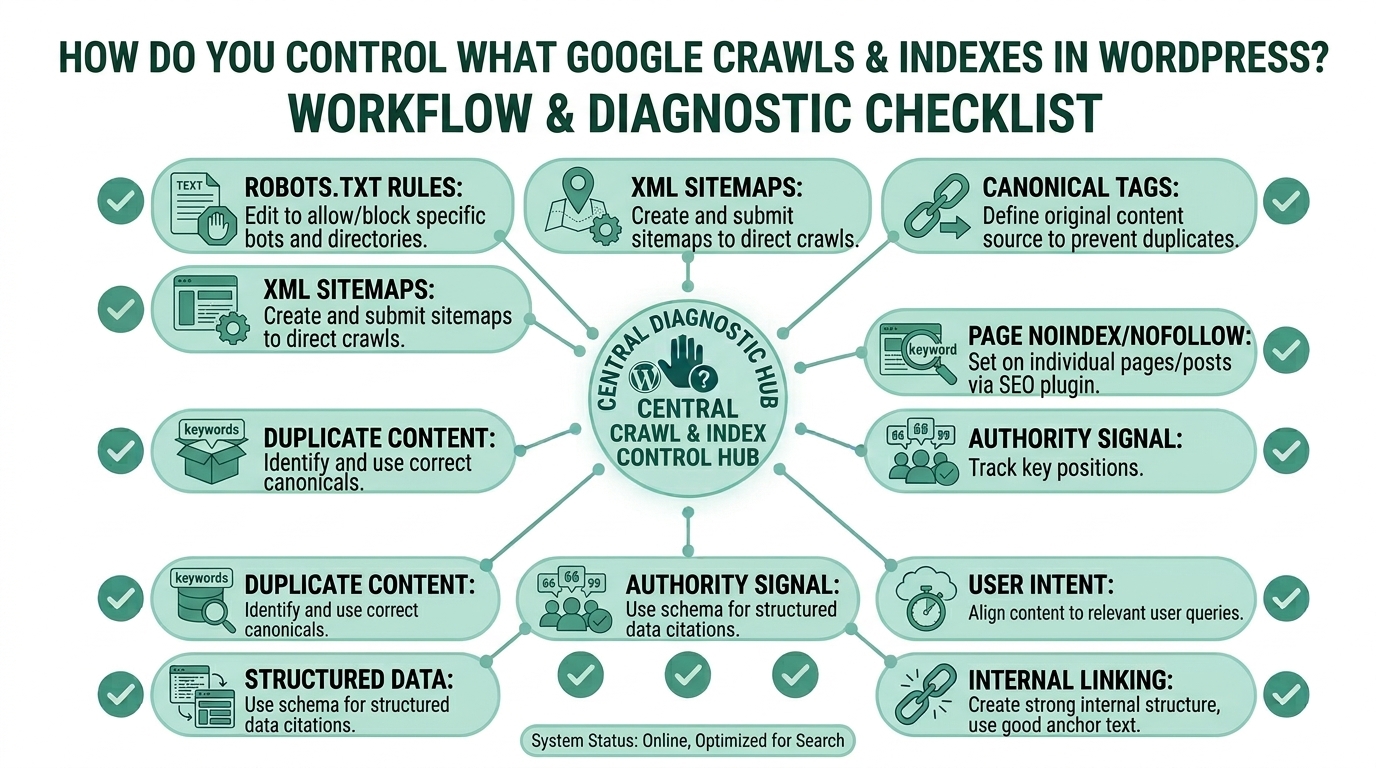
Control crawling and indexing with an XML sitemap, a simple robots.txt file, canonical tags, and noindex rules for pages that should not appear in search. Each tool does a different job, and mixing them up causes problems.
XML sitemaps
An XML sitemap lists the URLs you want search engines to find, and it helps them discover pages. Most SEO plugins generate one, and recent WordPress versions include a basic one. Include only indexable, canonical URLs. A sitemap helps discovery but does not guarantee indexing.
robots.txt basics
robots.txt tells crawlers which areas they may crawl, but it is not a way to keep a page out of search results. Blocking a URL in robots.txt stops crawling, not indexing, so a blocked page can still be indexed if other sites link to it. Google’s introduction to robots.txt explains the current rules. Keep the file simple, and include your sitemap address:
Sitemap: https://example.com/sitemap.xml
Archive, tag, author, and attachment pages
WordPress creates archive pages for categories, tags, authors, and dates, and you should decide which ones deserve to be indexed. Thin or duplicate archives add URLs without adding value. On a small site, tag and date archives are often candidates for noindex. Check your own site, because recent WordPress versions handle attachment pages differently from older ones.
Canonical URLs and duplicate content
A canonical tag tells search engines which version of a page is the preferred one when several URLs show similar content. WordPress and SEO plugins usually add canonical tags, but check the page source. Duplicates often come from URL parameters, www and non-www versions, and archives.
When to use noindex
Use noindex for pages that people may visit but that should not appear in search, such as thank-you pages and thin archives. A noindex tag looks like this:
<meta name=”robots” content=”noindex”>
A noindex rule only works if the crawler can read the page, so a page blocked in robots.txt may never show the tag. Do not block a page in robots.txt and expect noindex to work.
How Do You Connect WordPress to Google Search Console?
Connect WordPress to Google Search Console by verifying ownership, submitting your sitemap, and then using its reports to monitor indexing and performance. Search Console is free and shows how Google sees your site.
Verify your site
Add your site as a property and verify ownership with one of the methods Search Console offers, such as a DNS record or an HTML tag. A domain property covers all versions of your address, while a URL-prefix property covers one. Many SEO plugins can add the verification tag for you.
Submit your sitemap
Submit your sitemap address in the Sitemaps report once, and check the status. If you keep the sitemap up to date, Google revisits it periodically, so you do not need to resubmit it often. Errors usually point to blocked or broken URLs.
Use the URL Inspection tool
The URL Inspection tool shows whether Google has indexed a specific page and how it last crawled it. Use it after publishing an important page or after a fix. It also helps you check which canonical Google chose.
Read the indexing and performance reports
The Page indexing report shows which URLs are indexed and why others are not, and the Performance report shows queries, clicks, and impressions. Look for patterns, not single URLs. A status such as “Indexed, though blocked by robots.txt” means a page is blocked from crawling but still known to Google. If the page should stay out of search, the usual fix is to remove the block and use noindex instead.
Do you need Bing Webmaster Tools?
Bing Webmaster Tools is optional, but it is free and gives you similar information for Bing. If your audience uses Bing, add it. The setup follows the same pattern as Search Console.
How Do You Add Structured Data and Breadcrumbs in WordPress?
Add structured data that matches the visible content of each page, usually through your SEO plugin, and test it before you rely on it. Google’s guidelines say that markup should describe what visitors can see.
What structured data should most sites add?
Most sites should add Organization or Person details, Article markup for posts, and breadcrumb markup, and online stores should add Product markup. For an e-commerce business, product pages benefit from accurate Product data. Add only types that fit your content. Do not mark up content that is not on the page.
Add breadcrumbs through your theme or plugin
Many themes and SEO plugins can output a visible breadcrumb trail and matching BreadcrumbList markup. Google’s breadcrumb structured data page says the search feature is available on desktop. It also says that the visible trail and the markup should match. Check that your plugin’s trail reflects your real hierarchy.
Test your markup
Test your markup with Google’s Rich Results Test and the URL Inspection tool before and after publishing. Fix errors first. Google says that structured data does not guarantee a rich result, so treat the test as a check on correctness, not a promise of display.
How Do Speed, Mobile Design, and Hosting Fit Into WordPress SEO Setup?
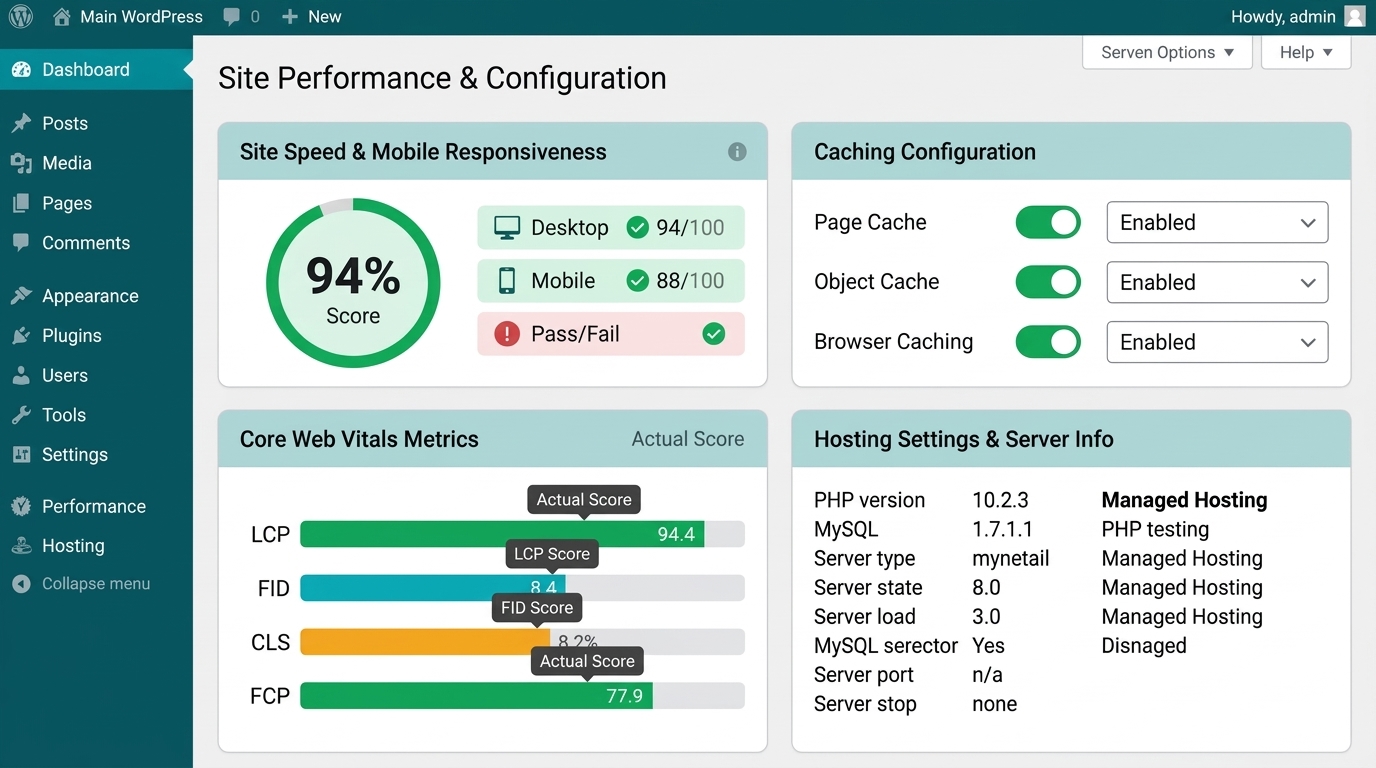
Speed and mobile design belong in setup because themes, images, and plugins set the page weight from day one. Google measures loading, responsiveness, and visual stability with Core Web Vitals.
Choose a fast, mobile-friendly theme
Choose a lightweight, responsive theme, and check that it loads only the code it needs. A theme that adds many scripts and styles slows every page. If you want layouts and structure planned together, my web design service covers that. Test a demo on a phone before you commit.
Compress and size images
Resize images to the size they display at, and compress them before or during upload. Large images are often the heaviest assets on a WordPress page. WordPress creates several sizes of each upload, and a good theme uses the right one. Add dimensions so the layout does not jump.
Caching and plugin discipline
Use one caching solution and keep the number of active plugins low. Caching stores prepared pages so they load faster. Each extra plugin can add code and requests, so remove those you do not use. Test after each change, because plugins can conflict.
Measure with Core Web Vitals
Measure with Page Speed Insights and the Core Web Vitals report in Search Console, and aim for the “good” thresholds. According to web.dev, those are 2.5 seconds or less for Largest Contentful Paint, 200 milliseconds or less for Interaction to Next Paint, and 0.1 or less for Cumulative Layout Shift. They are assessed at the 75th percentile of page views. See the web.dev article on how the thresholds were defined.
How Do You Set Up WordPress SEO for Multilingual and Right-to-Left Sites?
For multilingual and right-to-left sites, set the correct site language, use a theme with right-to-left support, and give each language version its own URL with matching language tags. Many sites in the Middle East, Europe, and Asia serve more than one language.
Site language and right-to-left themes
Set the language in Settings > General, and choose a theme that supports right-to-left layouts for languages such as Arabic and Hebrew. Check the theme documentation for right-to-left support and test the layout with real content. Mirrored menus, icons, and spacing are common problem areas.
Language versions and hreflang
Give each language version its own URL, and tell Google how the versions relate using hreflang annotations. Google publishes guidance on how to tell it about localised versions of a page. Read it before you build. Each version should link to the others, and the language codes should be correct.
URL and plugin choices for multilingual sites
Choose a clear URL pattern, such as a language folder like /ar/, and use a multilingual plugin that supports it. WPML, Polylang, and TranslatePress are examples of plugins for this. Compare them for URL handling, hreflang output, and compatibility with your SEO plugin. Test each language version separately.
How Do You Change URLs or Migrate an Existing WordPress Site Safely?
Change URLs or migrate only with a plan: map each old URL to its new URL, use server-side 301 redirects, and check the result afterwards. Redirects protect visitors and tell Google that a page has moved.
When is it worth changing permalinks?
Change permalinks on a live site only if the current URLs cause real problems, such as ID-only addresses. If your URLs are readable and working, leave them alone. Any change adds risk, and that is my practical view rather than a Google statement.
Redirects and a simple redirect map
A redirect map pairs every old URL with its closest new URL, and you should finish it before you change anything. Google’s redirect guidance says that permanent redirects such as 301 and 308 signal that the target should be the canonical URL, and that server-side redirects are the most reliable. See Google’s guidance on redirects. Point each old URL straight to its final address.
What to check after a migration
After a migration, check that old URLs redirect, internal links use the new URLs, the sitemap is updated, and the “Discourage search engines” box is unticked. Then watch the Page indexing report in Search Console for errors. Fix any chains and loops you find.
Which WordPress SEO Setup Mistakes Should You Avoid?
The most common mistakes are leaving the visibility setting on, changing permalinks late, running overlapping plugins, indexing thin archives, and treating setup as the whole strategy. Each is easy to prevent.
Leaving the search visibility setting on
A site that launches with “Discourage search engines” ticked asks search engines not to index it. Untick it at launch and check again after migrations and staging copies.
Changing permalinks after publishing
Changing permalinks after publishing changes every URL and creates broken links unless you redirect them. Decide early, and plan redirects if you must change.
Installing several overlapping SEO plugins
Several SEO plugins can output duplicate tags and sitemaps. Use one, and check the page source for duplicates.
Indexing thin archive pages
Thin tag and date archives add URLs with little value. Review them, and noindex those that do not help visitors.
Treating setup as the whole strategy
Setup removes technical obstacles, but it does not create useful content or authority. Plan content and internal links after the technical base is in place.
WordPress SEO Setup Guide Checklist Before You Launch
Before launch, check that the site is visible to search engines, the URLs are clean, one plugin is configured, the sitemap is submitted, and the key pages are tested. The checklist below turns the guide into a final review.
A pre-launch checklist
Answer yes to every item below before the site goes live.
- Is “Discourage search engines from indexing this site” unticked?
- Is the permalink structure set to a readable format, such as Post name?
- Do all other site versions redirect to one preferred HTTPS address?
- Is only one SEO plugin active and configured?
- Do titles and meta descriptions have sensible templates, and are key pages unique?
- Have you decided which archive pages to index or noindex?
- Does robots.txt allow crawling of important pages and list the sitemap?
- Is the sitemap submitted in Search Console, and is the property verified?
- Has structured data been tested with the Rich Results Test?
- Do the main templates meet the Core Web Vitals “good” thresholds on a phone?
How do you audit an existing WordPress site?
Audit an existing site by checking the settings in this guide, then reviewing Search Console and a crawl for problems. A regular technical SEO and audit routine can include these checks:
- Confirm the Reading setting and the live site’s robots.txt.
- Open the Page indexing report in Search Console for excluded and blocked URLs.
- Use URL Inspection on key pages to see Google’s chosen canonical.
- Crawl the site for duplicate titles, redirect chains, and thin archives.
- Run PageSpeed Insights on the home page and a typical post.
Fix template-level and setting-level problems first, because one change can improve many pages.
Conclusion
A good WordPress SEO setup removes technical obstacles so that search engines can find, crawl, and understand your pages. Start with visibility, permalinks, and your preferred address. Use one SEO plugin, set sensible templates, and control which pages are indexed. Submit a sitemap, test your markup and speed, and plan carefully for multilingual and right-to-left sites. Be honest about what setup can do: it builds a base, and it does not guarantee rankings. Work through the checklist, then put your effort into content that helps your readers.
FAQs
What is WordPress SEO setup?
WordPress SEO setup is the process of configuring visibility, URLs, plugins, crawling controls, and tools so search engines can crawl and index your site. It covers the technical base, not content or link building.
Is WordPress good for SEO out of the box?
WordPress gives you a sound base, but several defaults need your decisions, such as permalinks, archives, and metadata. Check what your theme and version output.
Which permalink structure is best for WordPress SEO?
The Post name structure is a common choice, because it gives readable URLs without ID numbers. Choose it before you publish, since changing it later changes every URL.
Which SEO plugin should I use?
Choose the plugin whose features, limits, and support match your needs. Yoast SEO, Rank Math, All in One SEO, and SEOPress all cover the basics. Run only one.
Do I need an SEO plugin at all?
Not strictly, but a plugin makes titles, descriptions, sitemaps, and indexing rules much easier to manage. Recent WordPress versions include a basic sitemap, but little control.
How do I submit a WordPress sitemap to Google?
Verify your site in Search Console, open the Sitemaps report, and submit your sitemap address. Check the status afterwards. You normally submit it once.
What does “Discourage search engines from indexing this site” do?
It asks search engines not to index your site, but your site remains visible to visitors, and not every search engine follows the request. Untick it on a live site.
Should I noindex tag and category pages?
Noindex thin tag pages, and index category pages only if they offer useful, unique content. Review each archive type on your own site.
How do I set up WordPress SEO for a multilingual site?
Give each language its own URL, set the language correctly, and use hreflang to link the versions. Follow Google’s guidance on localised versions.
How long does WordPress SEO setup take?
A basic setup can take a few hours on a small site, but the time depends on the theme, plugins, and size. Larger and multilingual sites take longer.