How to Create and Verify a Google Business Profile: Step-by-Step
Learn how to create or claim a Google Business Profile, complete the available verification process, troubleshoot common problems, and maintain accurate business information on Google Search and Maps.

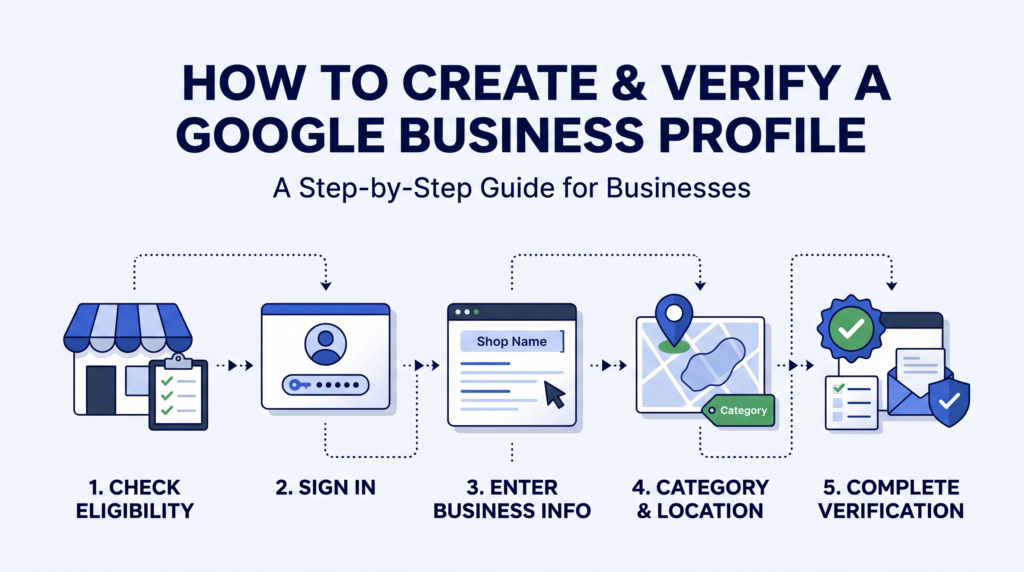
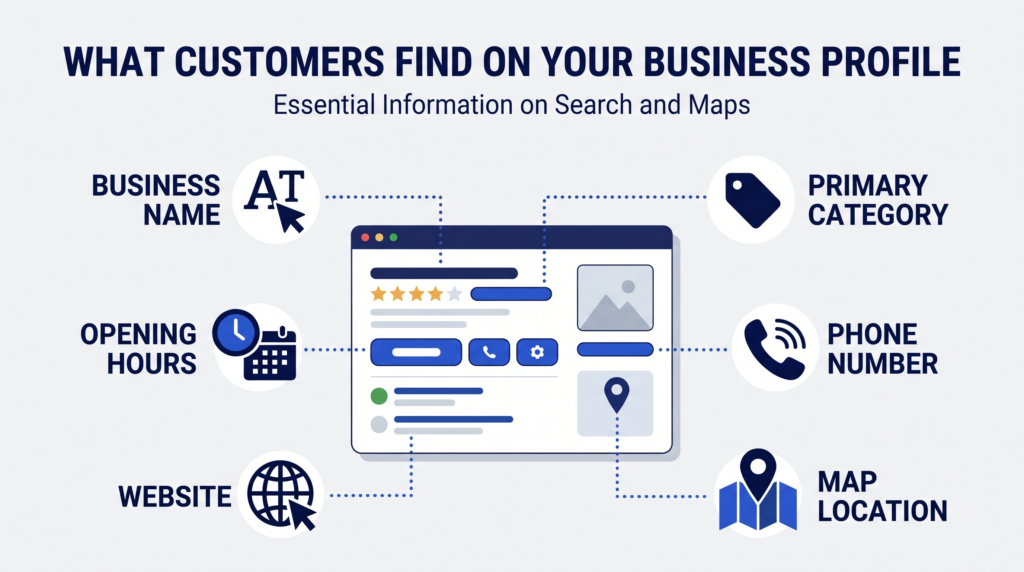
A Google Business Profile helps eligible businesses appear on Google Search and Google Maps. If you are learning how to create and verify a Google Business Profile, start by confirming eligibility and preparing accurate business details. The profile lets customers find your business name, location or service area, opening hours, phone number, website, and customer reviews. Creating a profile is free, but you must complete any verification steps Google offers before you can fully manage your listing.
This guide explains how to create a profile, claim an existing listing, choose the right verification option, and avoid common mistakes. Google’s screens and available verification methods can vary by business and region, so follow the options shown in your own account.
What Is a Google Business Profile?
A Google Business Profile is a business listing that can appear in Google Search and Maps. It helps people discover a business and review practical information before visiting or contacting it. Owners and authorized representatives can manage the information shown on the profile after they have access.
The profile is useful for storefronts and for eligible service-area businesses that visit customers. It is not intended for every website or online business. Read Google’s Business Profile eligibility and ownership guidelines before starting.
Who Can Create a Profile?
To qualify, a business generally needs to make in-person contact with customers during its stated hours. This may include a shop, office, or service business that travels to customers. Online-only businesses that do not meet customers in person are not eligible.
A virtual office or mailing address that the business does not actually operate from is not a valid substitute for a real business location. If customers do not visit your address, you may need to set up the profile as a service-area business and hide the address from public view. Follow Google’s current rules for your specific business type.
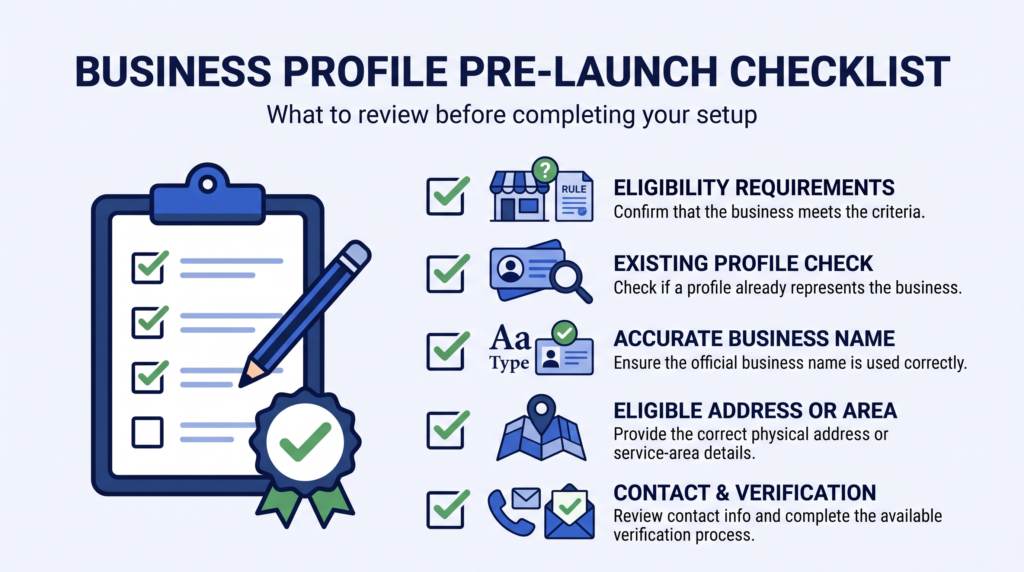
Before creating a profile, check that:
- Your business is real and currently operates.
- You have permission to manage the business listing.
- The business name matches how it is represented in the real world.
- Your address or service area is accurate.
- You are not creating a duplicate profile for the same business location.
Before You Start: Prepare Your Business Information
Gather the details you will need so that you can complete setup accurately. Prepare your real-world business name, the most appropriate primary category, a business phone number, your website URL if you have one, and your business hours. If customers visit your location, have the correct street address ready. If you travel to customers, prepare the service areas you genuinely serve.
Choose a primary category that describes what your business is, rather than listing every service it offers. You can add other relevant categories if they accurately describe the business, but do not use categories simply as extra keywords. Keep your business name consistent with your signage and other real-world branding. Google’s guidelines for representing your business explain these requirements in more detail.
How to Create and Verify a Google Business Profile
Follow these steps to set up a new listing and begin verification.
Step 1: Open the Official Business Profile Setup Page
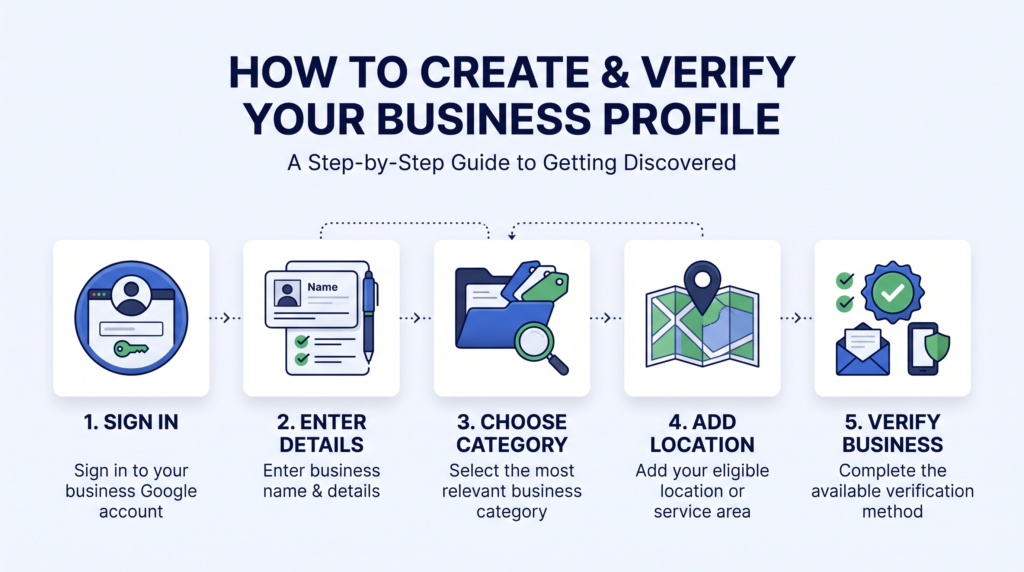
Go to Google’s official Add or Claim page. Sign in with the Google Account you want to use to manage the business. Choose the account carefully and make sure authorized colleagues can be added later if needed.
Step 2: Enter Your Business Name
Type your business’s real name. If a matching name appears in the suggestions, check whether it is your existing listing before creating another one. Do not add location keywords, sales messages, phone numbers, or extra services to the name unless they are genuinely part of the business’s real-world name.
Step 3: Choose the Business Category
Select the closest accurate category from Google’s available options. The primary category should describe the main business activity. You can review other relevant categories after setup, but avoid selecting unrelated categories to try to appear in more searches.
Step 4: Add a Location or Service Area
If customers can visit your staffed business location during opening hours, enter its real address and place the map pin accurately. If you travel to customers and do not serve them at your business address, select the service-area option when prompted and follow the instructions to hide the address if required.
Do not use a P.O. box, a remote mailbox, or a virtual office where your business does not operate. If the address cannot be found automatically, follow Google’s on-screen instructions to identify the correct location.
Step 5: Add Contact Details
Enter a phone number that reaches your business and your official website, if available. Check each detail for typing errors. Use a relevant website page rather than a page that redirects to an unrelated destination.
Step 6: Submit the Details and Follow the Prompts
Review the information before submitting it. Google may ask for additional details based on your business type. When prompted, choose one of the verification methods shown in your account. You cannot necessarily select any method you prefer; Google determines which options are available for the profile.
Step 7: Complete Verification
Follow the exact instructions displayed in your profile. Depending on the options Google offers, verification may involve a phone call or text, email, a live video call, a video recording, or another method. Do not assume that every business will receive the same options.
How to Create and Verify a Google Business Profile if One Already Exists
Search Google Search and Google Maps for your business name and location before creating a new listing. If you find an unverified profile for your business, use the claim option and follow the prompts. Google explains this process in its Add or claim a Business Profile guide.
If the profile is already verified by someone else, do not create a duplicate to work around the issue. Use Google’s ownership request process if you are authorized to manage the business. If you work for the business rather than own it, make sure the owner has approved your access.
Google Business Profile Verification Methods
The options available depend on factors such as business type, region, public information, and operating hours. Google chooses the methods shown for your profile, and some businesses may need more than one method. Check the current Google verification instructions for the steps that apply to your account.
Phone or Text
If phone or SMS verification appears, make sure you can answer the business phone or receive text messages at the number shown. Enter the code exactly as instructed. If the call or message does not arrive, confirm that the number is correct and that your phone can receive it before trying again.
If email verification is offered, check that you can access the email address shown on the verification screen. Open Google’s message and follow its instructions. Check spam or junk folders if you cannot find it, and avoid sharing verification codes with anyone who does not need access to manage the profile.
Live Video Call
A live video call may be available for some businesses. If it is offered, follow the instructions and be prepared to show where the business operates and evidence that you manage or represent it. The call may need to take place during the business’s stated hours.
Video Recording
Google may ask you to submit a video recorded through the Business Profile workflow. Its video verification guide says the recording must be live, unedited, unique, and continuous, and at least 30 seconds long. You should plan what to show before recording and upload it through the profile on a mobile device.
The required evidence depends on the business type. A storefront may need to show its location, permanent business signage, and access to areas or equipment used to run the business. A service-area business may need to show nearby location markers, work tools or equipment, and evidence that the person recording manages the business. Do not show private information, financial details, or identity numbers.
Other Verification Options
Google may offer another method for a particular profile. Use only the options actually displayed in your account. If none of the options works, follow the help steps in the profile and contact Google Business Profile support when appropriate. Do not pay a third party who promises to bypass verification.
How Long Does Verification Take?
The time depends on the method and whether Google needs to review the information. Some methods may complete quickly, while video verification can take several business days for review. Google’s video instructions currently say review may take up to five business days, but that estimate applies to the video process described there and should not be treated as a promise for every case.
Check the status in your Business Profile and watch for messages or requests for more information. Avoid repeatedly changing core business details while a review is underway unless a correction is necessary.
Common Verification Problems and How to Fix Them
You cannot find your business. Search using the correct business name and city, then check Google Maps. If no profile exists, start a new listing through the official setup page.
The business already has a profile. Claim the existing listing rather than creating a duplicate. If another person controls it, use the ownership request process.
The verification code does not arrive. Check the contact method shown, confirm that you can receive the message or call, and follow the retry instructions in your account.
Your video is rejected. Read the reason Google provides and record a new video that clearly includes the missing evidence. Make sure the business name, location clues, equipment, or management evidence match the requirements for your business type.
Your details do not match. Check the name, address, category, website, and phone number for errors. Keep the information consistent with your real-world business identity and Google’s policies.
You are asked to verify again. Changes to business information can trigger another verification request. Follow the method shown in the profile instead of trying to bypass the process.
If your profile is suspended rather than simply unverified, use the separate steps in this Google Business Profile suspension appeal guide. Verification and suspension are different issues, so first identify the message Google has given you.
What to Do After Verification
Once Google confirms verification, review the profile carefully. Add or update your opening hours, phone number, website, business description, services, and photos where those features are available and relevant. Use accurate information and update it when the business changes.
Ask real customers for honest reviews in a way that follows Google’s policies. Respond professionally to reviews and keep your profile current. Avoid fake reviews, misleading claims, keyword-stuffed business names, and duplicate listings. A complete profile can help customers understand your business, but verification alone does not guarantee a particular ranking or more sales.
For more help with ongoing visibility, see the site’s Local SEO resources or learn about Google Business Profile optimization. Choose the advice that fits your actual market and business type.
Quick Checklist Before You Finish
- Confirm that the business meets Google’s eligibility rules.
- Search for an existing profile before creating a new one.
- Use the real-world business name and a relevant category.
- Enter an accurate address or service area.
- Check the phone number and website for errors.
- Complete only the verification method Google provides.
- Keep private information out of verification videos.
- Review all details after verification and update them when needed.
Conclusion
Creating a profile starts with eligibility and accurate business information. Search for an existing listing first, then create or claim the correct profile and complete the verification method Google provides. Keep your business name, category, location, and contact details truthful, and follow the official instructions if Google asks for more evidence. Verification confirms that you can manage the profile; it does not guarantee a specific position in Search or Maps.
FAQs
1. Is a Google Business Profile free?
Yes. Google allows eligible businesses to add or claim a Business Profile at no charge. Be cautious of anyone who says you must pay them to create a basic profile or bypass verification.
2. Can I create a profile without a physical storefront?
Yes, if your eligible business meets customers in person at their locations. You may be able to set it up as a service-area business and hide your address. Online-only businesses that do not meet customers in person are generally not eligible.
3. Can I create a profile for an online-only business?
Usually not if the business operates only online and does not have in-person contact with customers. Check Google’s eligibility guidelines before you start.
4. What should I do if my business already appears on Google Maps?
Find the existing listing and use the claim process if it is unverified. If another person has verified it, request ownership through Google’s official process rather than creating a duplicate.
5. Can I choose my preferred verification method?
Not always. Google determines which verification methods are available for each profile. Complete the option or options shown in your account.
6. Does every business need video verification?
No. Video verification is one possible method, not a universal requirement. Your available options depend on your profile and Google’s assessment.
7. How long does Google Business Profile verification take?
Timing varies by method. Some options may complete quickly, while video review can take up to five business days according to Google’s current video verification guidance. Check your profile for the latest status.
8. Why was my verification video rejected?
The video may have missed required evidence, such as clear location clues, permanent signage, equipment, or proof that you manage the business. Review Google’s stated reason and submit a new recording that addresses it.
9. Can I change my business details after verification?
Yes, you can edit eligible profile details, but some changes may trigger another verification request. Keep all information accurate and follow any new instructions Google displays.
10. Does verification guarantee higher Google Maps rankings?
No. Verification gives you access to manage your profile, but it does not guarantee a specific ranking, more calls, or more sales. Keep the profile accurate and useful, and build your broader local presence responsibly.